Cómo liberar memoria RAM en Windows 11: 7 métodos seguros
Soluciona el consumo excesivo de RAM sin programas engañosos
Short answer: Windows 11 uses available RAM aggressively for SuperFetch (SysMain) and caching to speed up app launches. However, background startup bloat, runaway browser processes, and memory leaks can push utilization past 90%, causing stutter and lag. You can safely free up RAM by trimming startup apps, closing hung processes in Task Manager, and restarting SysMain.
Below are 7 verified ways to reclaim memory on Windows 11, explain why 'RAM booster' snake oil tools do more harm than good, and how DiskMop cleans startup bottlenecks permanently.
Puntos clave
- High RAM usage isn't always bad: Windows 11 intentionally caches frequently used apps in free memory.
- Memory leaks from web browsers and game launchers are the leading cause of actual system stutter.
- Third-party 'RAM cleaners' that force-purge working sets hurt CPU performance by forcing disk paging.
- Disabling high-impact startup apps in Task Manager permanently frees 1 GB to 3 GB of working memory.
- DiskMop System Health analyzes startup programs and service delays without dangerous memory flushing.
Optimiza el inicio y la memoria de tu ordenador con DiskMop.
DiskMop analiza, identifica y elimina de forma segura cachés ocultas, restos de apps y archivos basura del sistema.
Windows 11 Memory Usage by Application Type
| Category | Typical RAM Usage | Potential Impact | Recommended Action |
|---|---|---|---|
| Web Browsers (20+ tabs) | 2.5 GB – 6.0 GB | Heavy memory leaks over days | Enable memory saver / restart browser |
| Startup Background Apps | 1.0 GB – 3.0 GB | Slow boot & constant overhead | Disable in Task Manager > Startup |
| Windows SysMain / Cache | 1.5 GB – 4.0 GB | Normal cached memory | Leave enabled (auto-frees on demand) |
| Discord / Teams / Slack | 800 MB – 2.0 GB | Electron framework bloat | Disable hardware acceleration / auto-start |
Why Windows 11 shows high RAM usage at idle
Modern operating systems follow the principle: 'Unused RAM is wasted RAM'. Windows 11 pre-loads your most common apps into memory so they open in milliseconds.
As soon as you launch a demanding game or video editor, Windows automatically purges cached memory to accommodate the new workload. True memory issues only occur when active private working sets exceed physical capacity.
The danger of snake-oil RAM cleaners
Many shady PC booster tools claim to 'empty RAM with one click'. They achieve this by forcibly writing active memory to the Windows paging file on your SSD.
This spikes SSD wear, slows down apps as data is re-read from disk, and degrades overall responsiveness. Removing unnecessary startup programs is the only safe and permanent solution.
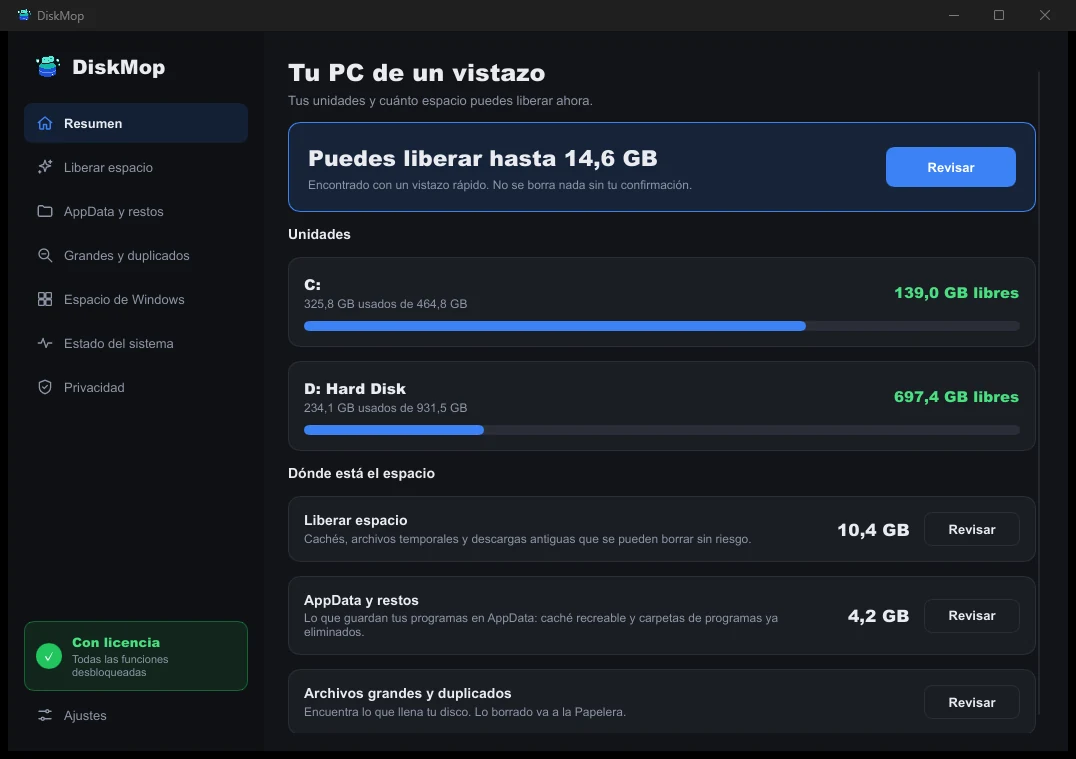
Cómo lo soluciona DiskMop: Vista general
Ve todo el uso de tu disco en una sola pantalla. Identifica al instante las áreas que se pueden limpiar.
Preguntas frecuentes
Is 80% RAM usage on Windows 11 normal?
Yes, if you have 8 GB of RAM and are multitasking with browsers and office suites. On 16 GB or 32 GB systems, idle usage above 60% indicates excess startup apps.
Does disabling SysMain (SuperFetch) save RAM?
Disabling SysMain reduces cached memory, but it slows down app launch times on mechanical hard drives. On fast NVMe SSDs, disabling it has minimal impact.
How much RAM does Windows 11 need to run smoothly?
While Microsoft states 4 GB as the minimum, 16 GB is the practical sweet spot for smooth gaming, web browsing, and productivity in 2026.
How does DiskMop help with system memory?
DiskMop identifies high-impact startup items and background service delays, freeing up memory from booting programs that don't need to run constantly.
Veredicto
Do not fall for automated memory cleaner software that continuously flushes your cache. Trim your startup programs, restart your browser periodically, and use DiskMop to keep startup items clean.
Optimiza el inicio y la memoria de tu ordenador con DiskMop.
DiskMop analiza, identifica y elimina de forma segura cachés ocultas, restos de apps y archivos basura del sistema.