Delivery Optimization Files in Windows: What They Are and How to Delete Them
Why Windows stores update files for other computers, and how to reclaim the space
Delivery Optimization files are copies of update and app files that Windows keeps so it can download them in pieces and, if you allow it, share them with other PCs. They are safe to delete: Windows downloads a file again only when it needs it, and nothing you installed or saved is touched. You can empty the cache from Settings, Disk Cleanup, PowerShell or a cleaner, and a cleanup often returns several gigabytes.
The cache is hidden in a service account's folder, so File Explorer does not show it in the places you usually look, which is why people find it only when the drive is almost full. This guide explains how Delivery Optimization works, how to see the real size, four ways to clear it and how to stop it from growing again.
Key Takeaways
- Delivery Optimization is the Windows feature that downloads updates in pieces from Microsoft and, if allowed, from other PCs; its cache is a copy of update files kept for that purpose.
- The cache is safe to delete: Windows downloads a file again only if it needs it, and nothing you installed or saved is affected.
- You can empty it through Settings, Disk Cleanup, the Delete-DeliveryOptimizationCache PowerShell command or a cleaner, and on Pro editions you can cap how much it may use.
Check how much space Delivery Optimization takes with Disk Mop
DiskMop automatically scans, identifies, and safely cleans hidden caches, app leftovers, and system junk.
Ways to clear the Delivery Optimization cache
| Method | Where | Needs administrator? | Notes |
|---|---|---|---|
| Settings, Temporary files | Settings, System, Storage, Temporary files | No (asks for approval) | Tick Delivery Optimization Files; shows the current size |
| Disk Cleanup | Disk Cleanup, Clean up system files | Yes | Tick Delivery Optimization Files |
| PowerShell | Delete-DeliveryOptimizationCache -Force | Yes | Run PowerShell as administrator |
| Disk Mop | Windows space page, Delivery Optimization cache | Yes | Shows the size first and asks before cleaning |
What Delivery Optimization Does
When Windows downloads a large update or a Microsoft Store app, it does not fetch it as one file from a single server. Delivery Optimization splits the download into pieces and fetches them from Microsoft's servers and, when the setting allows it, from other PCs that already have them. The pieces are stored in a cache so that your PC can in turn hand them to others and so a repeated download is fast.
The cache folder is C:\Windows\ServiceProfiles\NetworkService\AppData\Local\Microsoft\Windows\DeliveryOptimization\Cache. It belongs to a system service account, so you need administrator rights to see its contents, and normal folder size tools often miss it.
After a large feature update the cache can be several gigabytes, and it stays there until Windows decides to remove it.
Is It Safe to Delete?
Yes. The files in this cache are copies of data that Windows can fetch again. Deleting them does not uninstall an update, remove an app or change your settings. The worst case is that the next update downloads a part of the data again.
The only thing you give up is the ability to share those pieces with other PCs, which matters only if you have several PCs on one network and use the feature on purpose.
Do not delete the DeliveryOptimization folder by hand. Use one of the methods below, which ask Windows to clear it properly.
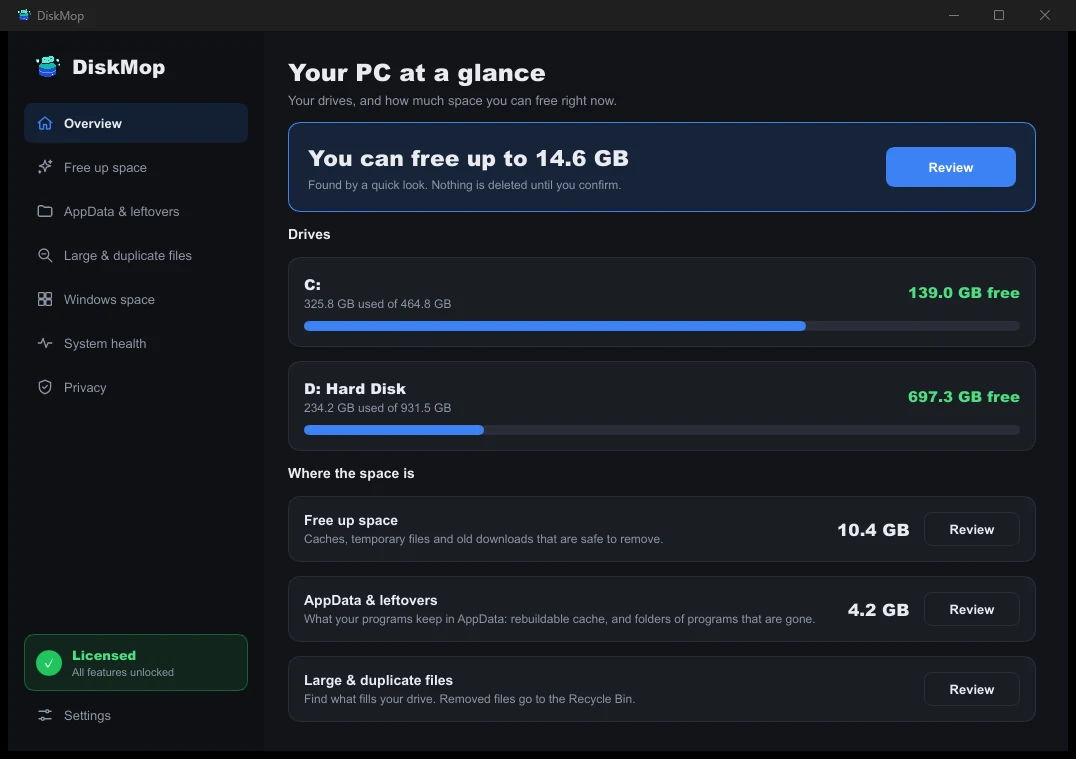
How DiskMop Solves This: Overview
See all your disk usage on a single screen. Instantly identify areas that can be cleaned.
Clear It from Settings or Disk Cleanup
In Windows 11 and 10, open Settings, System, Storage and Temporary files. After the list loads, tick Delivery Optimization Files and choose Remove files. The size shown next to the item is what you will get back.
Disk Cleanup does the same job. Search for it, choose your system drive, select Clean up system files, tick Delivery Optimization Files and confirm. It asks for administrator permission.
Both routes use Windows' own cleaner, which empties the cache without breaking the service. Run it again after big updates if you want to keep the cache small.
Clear It with PowerShell or Disk Mop
If you prefer a command, open PowerShell as administrator and run Delete-DeliveryOptimizationCache -Force. The command empties the cache in one step and prints nothing when it succeeds.
Disk Mop uses the same Windows command. On its Windows space page, the Delivery Optimization cache item shows the current size and explains that it holds update files Windows keeps to share with other PCs, that it is safe, and that Windows downloads again if needed. Cleaning it needs administrator rights, and Disk Mop asks before it does anything.
Windows space also lists other space that Windows keeps for itself, such as Windows.old and restore points, each with an explanation, so you can see what is worth cleaning in one place.
Keep It from Growing Back
On Windows Pro and higher you can cap the cache with Group Policy: in the Local Group Policy Editor, go to Computer Configuration, Administrative Templates, Windows Components, Delivery Optimization and set Absolute Max Cache Size (in GB) or Max Cache Size (percentage). A small limit keeps the cache from reaching several gigabytes again.
If you do not need peer-to-peer sharing, turn off Allow downloads from other PCs in the same place. Windows then downloads only from Microsoft and has less reason to keep a large cache.
Check Temporary files in Settings once a month, or run a scheduled cleanup, and the cache never becomes a surprise.
Frequently Asked Questions
What are Delivery Optimization files in Windows 11 and 10?
They are update and app files that Windows downloaded and kept so it can deliver them faster and, if you allow it, share them with other PCs on your network or the internet. The cache lives in C:\Windows\ServiceProfiles\NetworkService\AppData\Local\Microsoft\Windows\DeliveryOptimization\Cache.
Is it safe to delete Delivery Optimization files?
Yes. They are copies. If Windows needs a file again it downloads it, so deleting the cache does not remove an installed update, an app or any of your own files.
Will deleting them break Windows Update?
No. Windows Update keeps working. The next update may download a little more data because the cached pieces are gone, but nothing fails.
Can I stop Windows from sharing updates with other PCs?
Yes. In Settings, Windows Update, Advanced options, Delivery Optimization, turn off Allow downloads from other PCs. Windows then downloads only from Microsoft and has less reason to keep a large cache.
Verdict
Delivery Optimization files are copies of update data that Windows keeps to speed up and share downloads. They are safe to delete through Settings, Disk Cleanup or Delete-DeliveryOptimizationCache, and you can limit their size so they stay small.
Disk Mop shows the Delivery Optimization cache on its Windows space page, with its size and a clear explanation, and cleans it with Windows' own command after you confirm. Scanning is free, so you can see how much space it takes before you decide.
Check how much space Delivery Optimization takes with Disk Mop
DiskMop automatically scans, identifies, and safely cleans hidden caches, app leftovers, and system junk.