How to Clear the Thumbnail Cache in Windows 11 and 10 (Fix Wrong or Missing Thumbnails)
Reset the hidden database behind File Explorer previews and icons
The Windows thumbnail cache is a set of hidden database files, thumbcache_*.db and iconcache_*.db, in %LOCALAPPDATA%\Microsoft\Windows\Explorer. File Explorer reads previews from them so folders full of pictures open quickly. They are safe to delete: Windows rebuilds them as you browse, and clearing them fixes blank, black or outdated thumbnails and returns the space they used.
This guide explains what the cache holds, why it goes wrong, how to clear it with Disk Cleanup, by hand or with Disk Mop, and what to expect afterwards. The only visible effect is that folders you open next time load their previews a little more slowly once.
Key Takeaways
- Windows stores previews of your pictures, videos and documents in thumbcache_*.db files and icons in iconcache_*.db files inside %LOCALAPPDATA%\Microsoft\Windows\Explorer.
- Deleting these files is safe: Windows rebuilds them as you browse folders, and only the first view of each folder is slower.
- Clearing the cache fixes blank, black, outdated or wrong thumbnails and icons, and also returns the space the cache had taken.
Clear the thumbnail cache and other safe caches with Disk Mop
DiskMop automatically scans, identifies, and safely cleans hidden caches, app leftovers, and system junk.
Thumbnail and icon cache files in the Explorer folder
| File pattern | What it holds | Rebuilt automatically? |
|---|---|---|
| thumbcache_32.db, thumbcache_96.db | Small previews used in lists and details view | Yes |
| thumbcache_256.db, thumbcache_1024.db | Medium and large previews used in icon view | Yes |
| thumbcache_idx.db and other thumbcache_*.db files | Index and extra sizes for the preview database | Yes |
| iconcache_*.db | Cached program and file-type icons | Yes |
What the Thumbnail Cache Is
When you open a folder of photos or videos in File Explorer, Windows does not decode every image each time. It builds a small preview once and stores it in a cache database. The next time you open the folder, it reads the previews from the database, which is why a large folder opens quickly.
The preview databases are the thumbcache_*.db files, named by the preview size they hold, such as thumbcache_96.db, thumbcache_256.db and thumbcache_1024.db, with thumbcache_idx.db as the index. Icons for programs and file types are stored in iconcache_*.db files. All of them sit in the Explorer folder under your local AppData.
Because the databases are only copies of previews, they can be rebuilt from your originals at any time.
Why Thumbnails Go Wrong
A cache is only as good as the moment it was written. If Windows crashes while the database is being updated, if a disk error damages it, or if a program replaces files without telling Explorer, the database can hold a wrong or empty preview. Explorer then keeps showing the broken thumbnail even though the file itself is fine.
The usual signs are black or blank thumbnails, a generic icon where a picture should be, an old preview that does not match the file, or a folder that is slow to show previews. Icons that look wrong after changing a default app point to the icon cache.
Clearing the cache forces Windows to build fresh previews from the files, which fixes all of these.
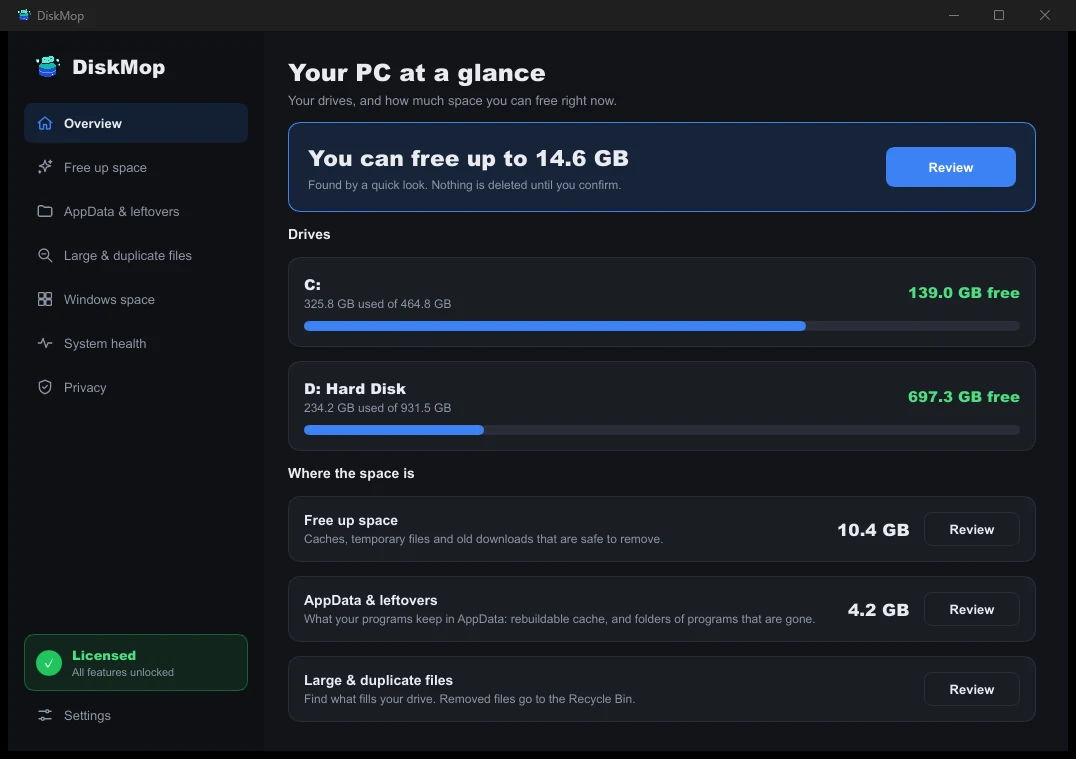
How DiskMop Solves This: Overview
See all your disk usage on a single screen. Instantly identify areas that can be cleaned.
Delete the Cache with Disk Cleanup
The easiest way is Disk Cleanup, because it can remove files that File Explorer is holding open. Search for Disk Cleanup, pick your system drive, tick Thumbnails and choose Delete Files. You can untick the other items if you only want the previews cleared.
Windows 11 also offers it in Settings, System, Storage, Temporary files, where Thumbnails appears in the list of items you can remove.
After cleaning, open a folder of pictures. The first view is a little slower while Windows rebuilds the previews, and later views are fast again.
Reset the Cache by Hand
If a thumbnail stays wrong after Disk Cleanup, delete the files yourself. Close every File Explorer window, open Task Manager, find Windows Explorer and choose Restart. Then open %LOCALAPPDATA%\Microsoft\Windows\Explorer in the address bar, turn on hidden items, and delete the files that start with thumbcache_ and iconcache_.
Files that Windows still has open are skipped; delete them again after signing out and back in. Do not delete the Explorer folder itself or other files in it.
Then reopen your folders and let the previews rebuild.
Clear It with Disk Mop
Disk Mop's Free up space page lists the Thumbnail cache as one item with its size and a short explanation of what cleaning it does. It covers the thumbcache_ and iconcache_ database files in the Explorer folder and nothing else in that folder.
Run the scan, tick the item and confirm. Disk Mop shows what it found before it deletes anything, and scanning is free, so you can see the size first. Files that Explorer holds open are skipped, so close extra Explorer windows before you start.
The thumbnail cache is only one of several safe caches on the same page, so you can clear temporary files and browser caches in the same pass.
Frequently Asked Questions
Is it safe to delete thumbcache files?
Yes. A thumbcache file is a copy of previews that Windows can generate again from your original pictures, videos and documents. Deleting it does not remove or change any of your files.
Why are my thumbnails black, blank or wrong in File Explorer?
The cache is a database, and it can become corrupted or out of date, for example after a crash, a disk error or a program that changed files without Windows noticing. Windows then keeps showing the broken preview until the cache is cleared.
Why can't I delete the thumbnail cache files directly?
File Explorer keeps the thumbcache files open while it runs, so Windows refuses to delete some of them. Use Disk Cleanup, or close File Explorer windows and restart Windows Explorer before you delete the files.
How big is the thumbnail cache?
It depends on how many pictures and videos you have browsed. A typical PC has between about 100 MB and a few hundred megabytes of thumbnail and icon cache files, and a large photo library can push it higher.
Verdict
The Windows thumbnail cache is a rebuildable set of preview and icon databases. Clearing it with Disk Cleanup or by hand fixes blank, black or wrong thumbnails and returns some space, and the only cost is a slower first view of each folder.
Disk Mop lists the Thumbnail cache next to other safe caches, shows its size and asks before it deletes. Scanning is free, so you can see the size before you decide.
Clear the thumbnail cache and other safe caches with Disk Mop
DiskMop automatically scans, identifies, and safely cleans hidden caches, app leftovers, and system junk.